Getting Started
1. Download & Install
Download mental from the App Store for iOS. Currently in beta—sign up on our homepage to get your TestFlight invitation.
2. Sign Up
Sign up using passwordless email authentication. Simply enter your email address and you'll receive a magic link to sign in securely.
Email Sign-Up Screenshot
3. Complete Onboarding
Set up your household in just a few steps:
- Enter your household name and size
- Select task categories (Kitchen, Laundry, Bedroom, etc.)
- Choose from template tasks or create your own
- Invite household members via email
Onboarding Screenshot
4. Start Managing Tasks
You're ready to go! Tasks are organised by timeframes. Tap the + button to create your first task.
Core Features
Timeframe Organisation
Tasks are organised by timeframes to match how your household operates:
- AM — Morning tasks before midday
- PM — Afternoon and evening tasks
- Regular — Routine tasks that recur consistently
- Ongoing — Long-term or continuous tasks
- Occasional — Infrequent or ad-hoc tasks
Within each timeframe, tasks are grouped by custom categories. Drag and drop to reorder tasks within categories.
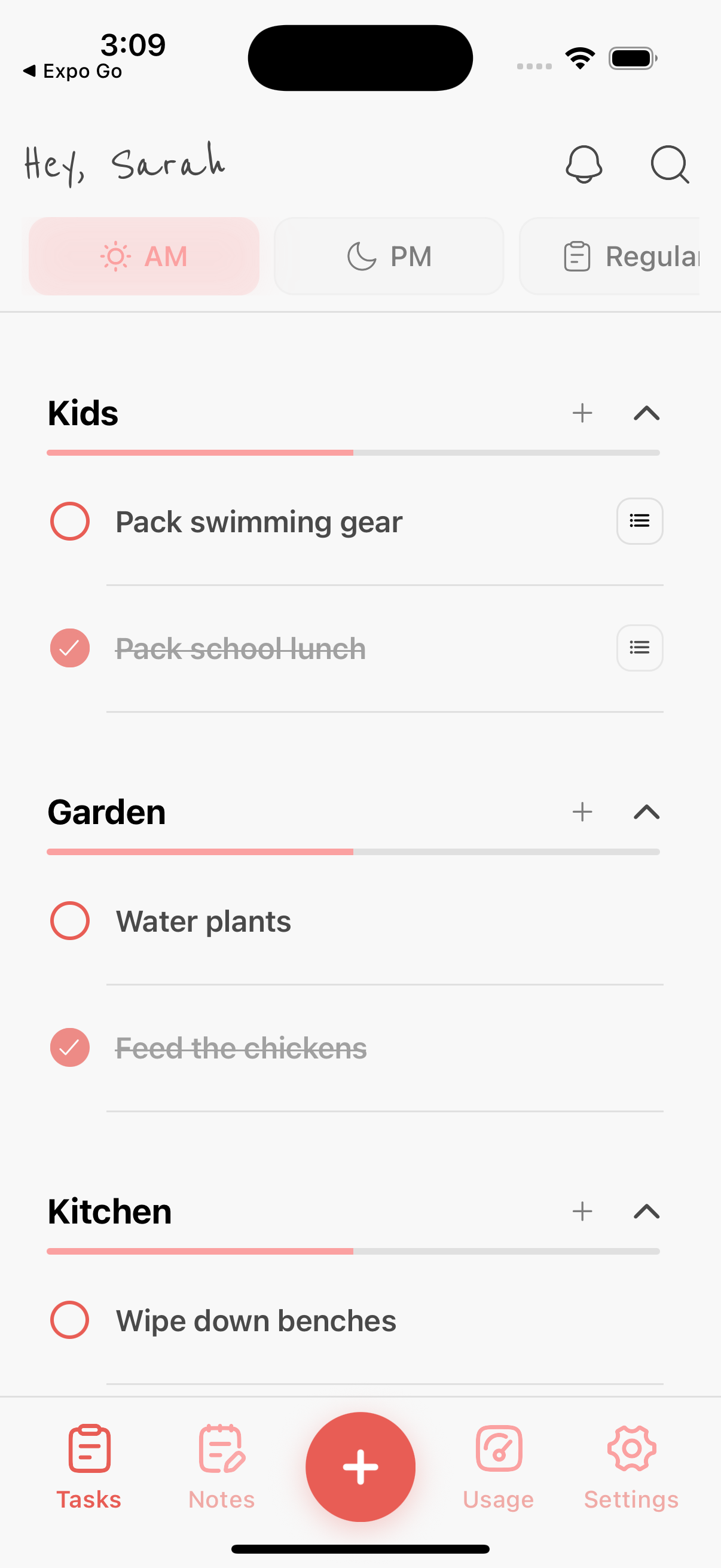

Rich Task Details
- Title and description
- Estimated duration and due date
- Priority flags
- Sub-task checklists
- Notes and links for context
Task Assignment & Notifications
- Assign tasks to household members
- Instant notifications when assigned
- Track who assigned and completed tasks
Recurring Tasks
- Repeat daily, weekly, or monthly
- Weekdays-only option for work-week tasks
- Automatic reset at 1 AM
Usage Analytics
- Track who created and completed tasks
- View total hours contributed per member
- Filter by day, week, or month
- Ensure fair distribution of work
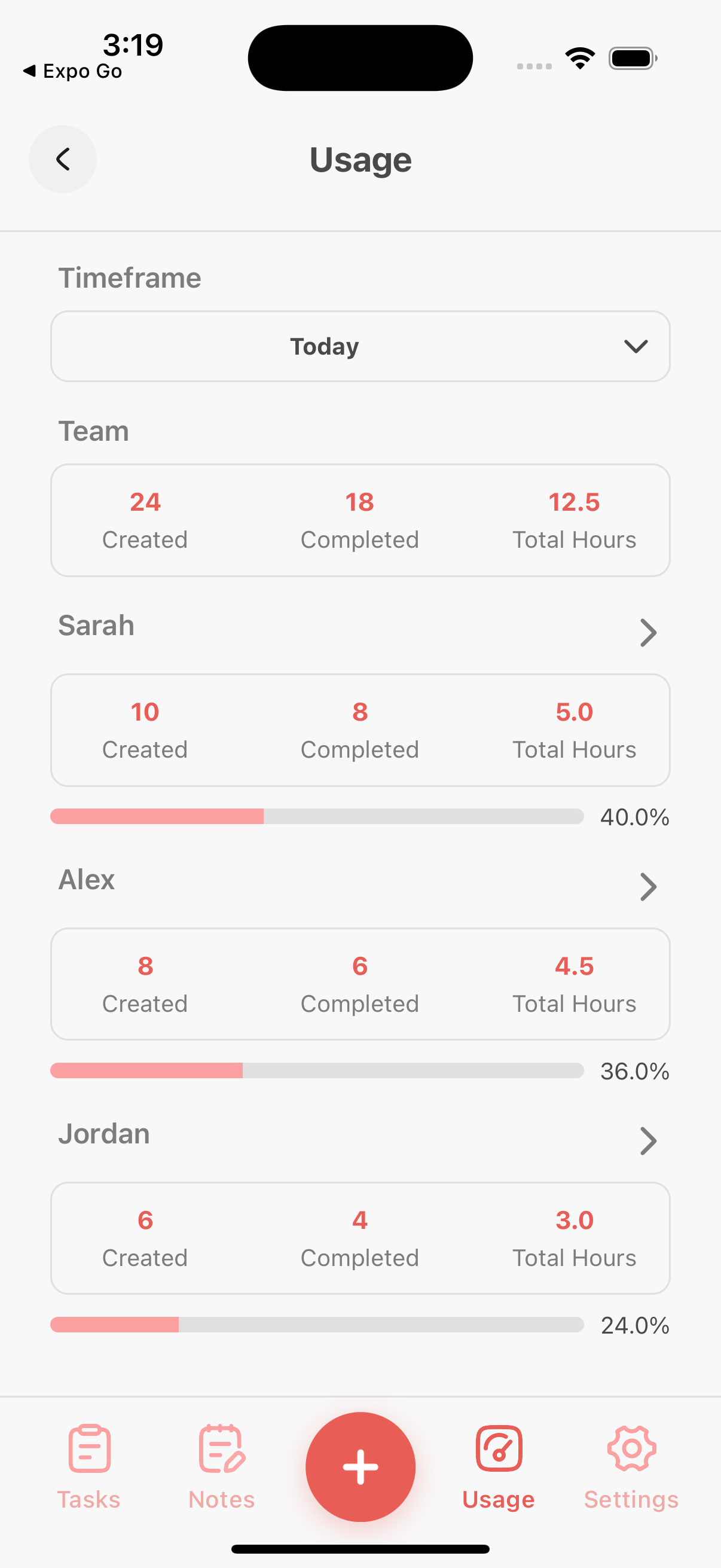
Search & Filter
- Built-in task search
- Filter by category, timeframe, or assignment
Household Profiles
- Create profiles for all household members
- Custom emojis and colours for children
- Personalised avatars
- View assigned tasks per member
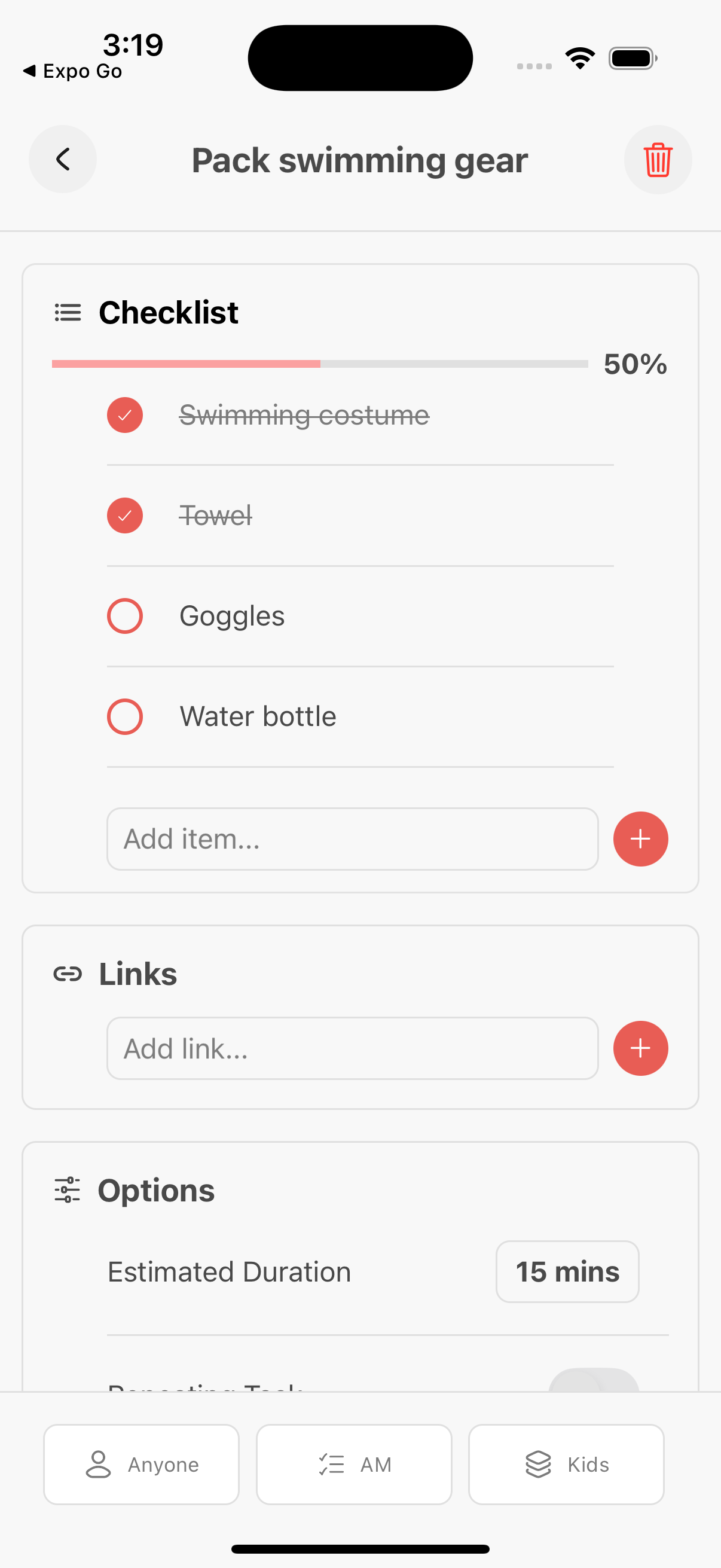
Task History Screenshot
Team Management
Inviting Team Members
To invite someone to your household:
- Go to Settings → Team Management
- Tap "Invite Member"
- Enter their email address
- They'll receive an invitation email with a link to join
- Once they sign up, they'll automatically join your household
Managing Team Members
- View all household members
- Anyone can assign tasks to any member
Team Settings Screenshot
Task Workflows
Creating a Task
- Tap the "+" floating button at the bottom of the screen
- Enter the task title (required)
- Add an optional description for more context
- Set estimated duration in minutes
- Choose a category (Kitchen, Laundry, etc.)
- Select timeframe: AM, PM, Regular, Ongoing, or Occasional
- Assign to a household member (or leave unassigned)
- Optional: Set a due date, reminder time, and priority flag
- Optional: Configure recurring schedule (daily/weekly/monthly)
- Optional: Add checklist sub-tasks
- Tap "Create Task"
Completing a Task
- Tap the checkbox to mark complete
- Logged with your name and timestamp
- Tracked in usage analytics
- Recurring tasks reset automatically at 1 AM
Editing Tasks
- Tap any task to open edit screen
- Modify all task properties
- Add or remove checklist items
- Change category or reassign
Managing Categories
- Go to Settings → Categories
- Create custom categories for your household
- Reorder by dragging
- Delete unused categories
Viewing Analytics
- Navigate to the Usage tab
- View team totals and per-member breakdowns
- See tasks created, completed, and hours contributed
- Filter by today, week, month, or custom range
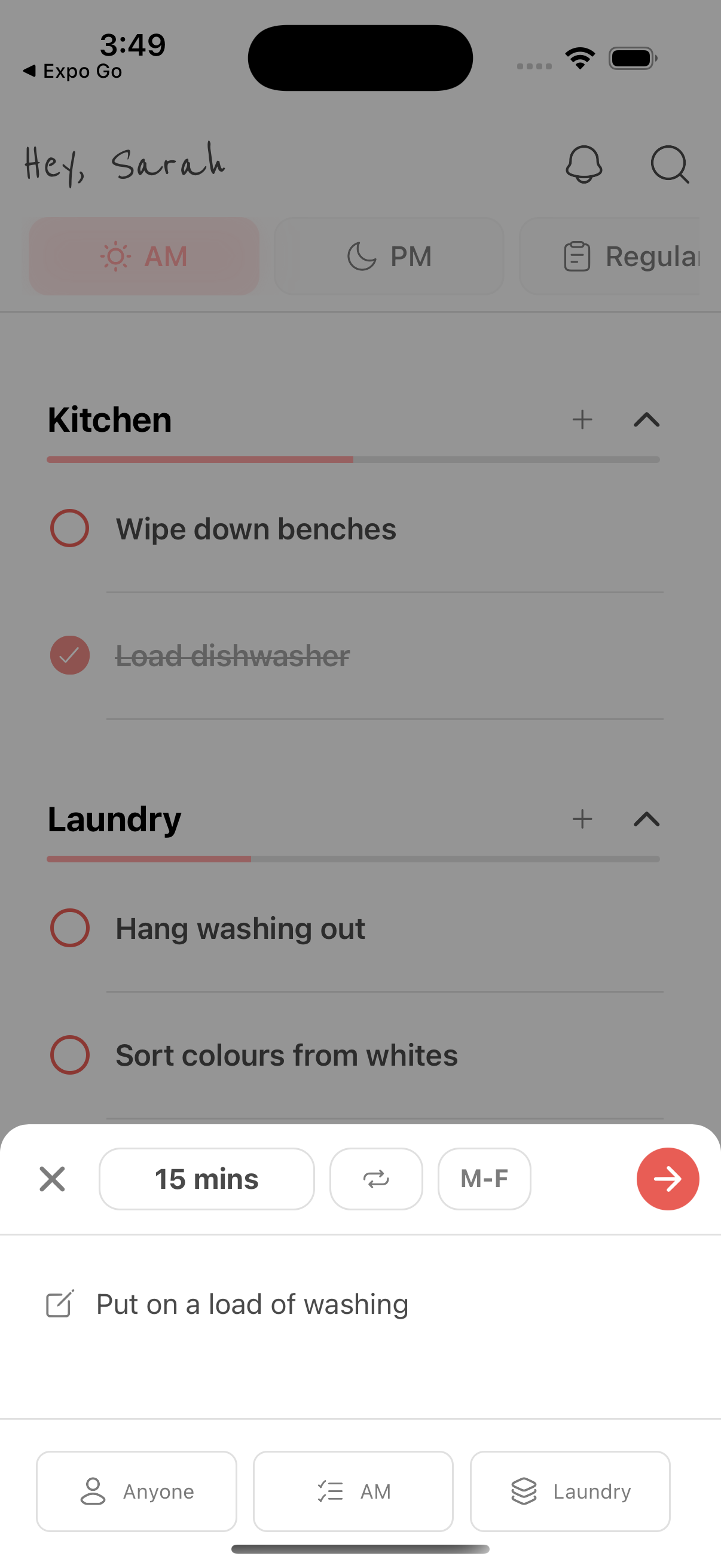
Editing Tasks Screenshot
Frequently Asked Questions
Is mental free?
Yes, currently in beta and free to use. Pricing will be announced before official launch.
What platforms does mental support?
Currently iOS only. All team members need iOS devices to use the app together.
How is my data protected?
We take privacy seriously. All data is encrypted in transit and at rest. Read our Privacy Policy for details.
Can I create profiles for my children?
Yes! Create profiles with custom emojis and colours. Children can view and complete their assigned tasks, teaching responsibility.
How do recurring tasks work?
Set tasks to repeat daily, weekly, or monthly. Weekdays-only option available. Tasks automatically reset at 1 AM based on their schedule.
Can I customise task categories?
Yes! Go to Settings → Categories to create, reorder, or delete custom categories.
What authentication methods are supported?
Passwordless email authentication. Enter your email to receive a secure magic link.
Support
Need help? We're here for you.
Found a bug or have a feature request? We'd love to hear from you at hello@usemental.app